Windows Setup Guide
What You'll Need
- Windows PC or Laptop
- Your HoxyTV subscription credentials
- Stable internet connection
Step 1: Download an IPTV Player
Option 1: Hot player
- Visit: Hot Player
- Download and install the IPTV application
Option 2: IBO Player Pro
- Visit: IBO Player Pro
- Download and install the IPTV application
Configure Hot player
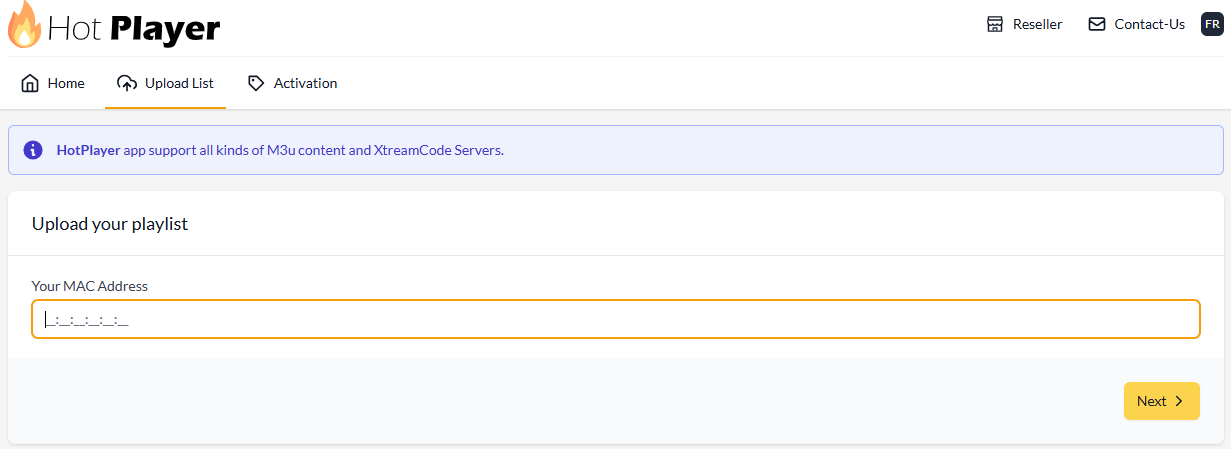
- Open the player and you’ll find your MAC address. it’ll ask you to use the MAC address to upload your playlist that we provide.
- visit: https://hotplayer.app/upload
- Login with your MAC address
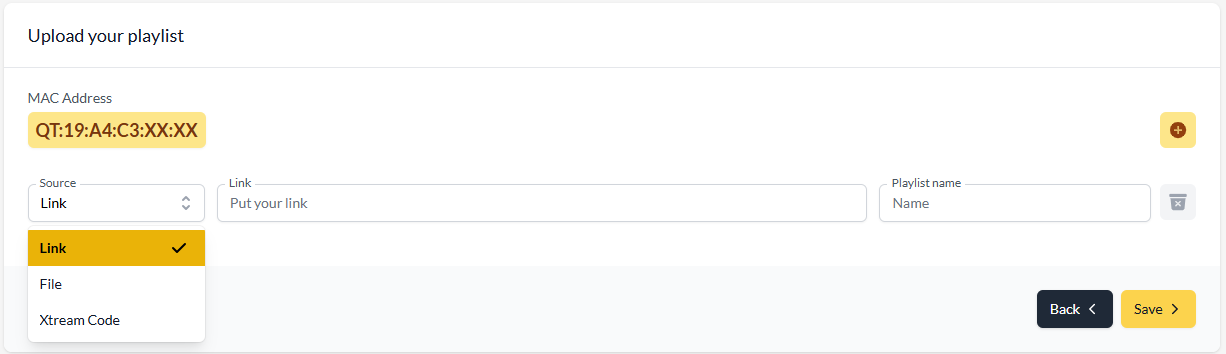
- In the Source: choose
- Link = M3U or Xtream Code
- Playlist name: HoxyTV
- Click Save then restart the app
Configure IBO Player Pro
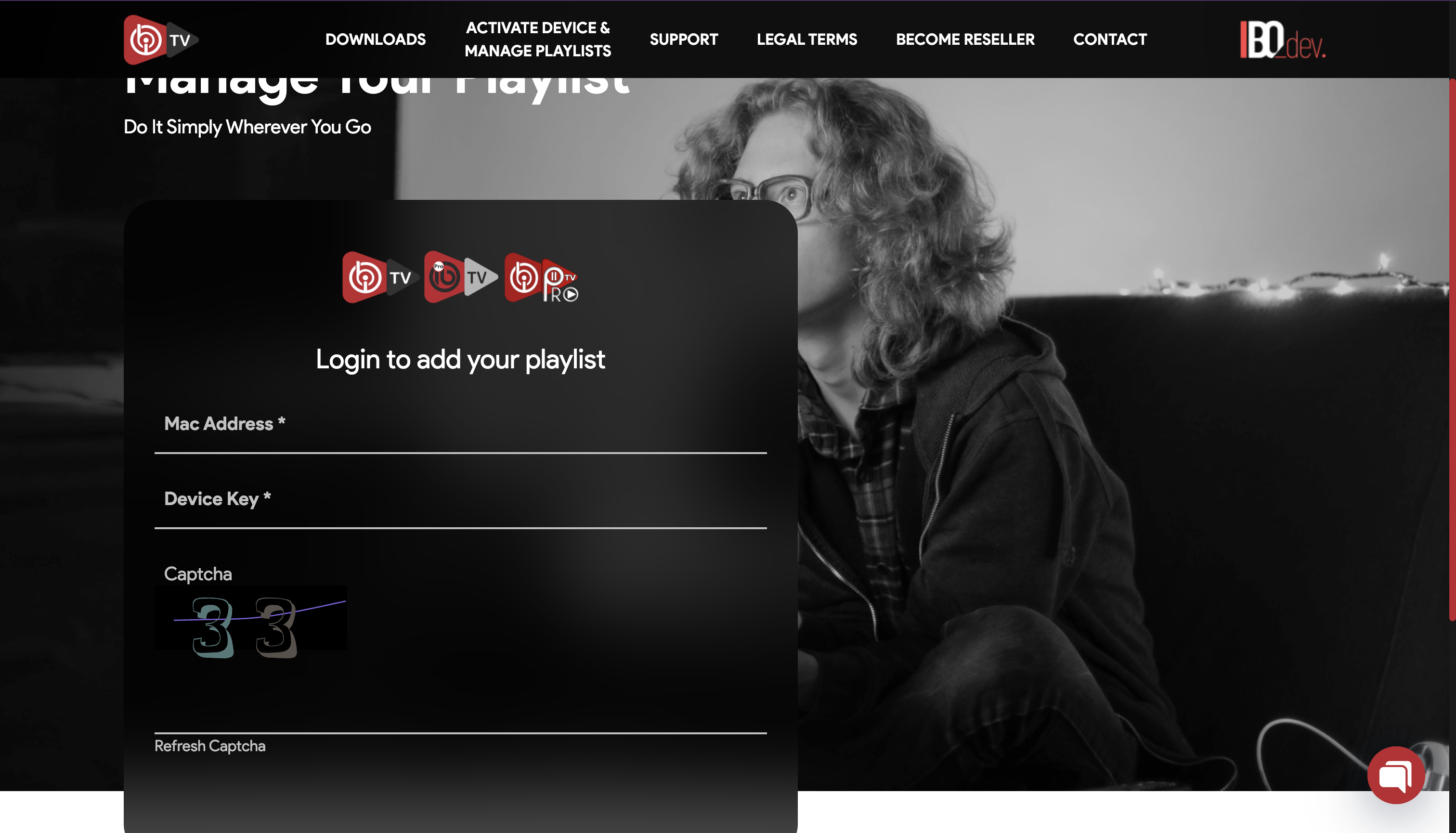
- Open the player and you’ll find your MAC address and your device key. it’ll ask you to use the them to upload your playlist that we provide.
- visit: https://iboplayer.com/device/login
- Login with your MAC address and device key
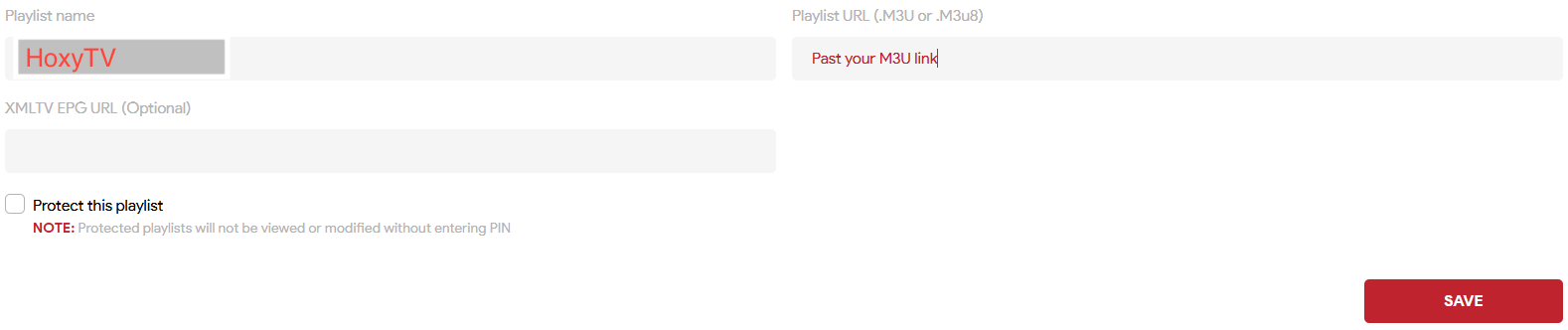
- Click on Add playlist
- Playlist name: HoxyTV
- Playlist name: HoxyTV
- Playlist URL: your M3U link
- Click Save then restart the app
Step 3: Optimize Settings
- Go to app Settings
- Enable Hardware Decoding for better performance
- Set Connection Timeout to 10 seconds
- Choose your preferred Video Quality
🎉 You're All Set!
Your Windows device is now configured with HoxyTV. Start streaming your favorite content!